How to Use FFXI Item Search
FFXI Item Search is a site for searching FFXI equipment.
You can search by job, weapon or armor type, level, and more. You can also search item descriptions by entering keywords or expressions.
To switch to the Japanese version, choose "日本語" from the "⋮" menu at the top right.
For feedback, questions, or bug reports, please leave a comment on the blog.
Search by Job
Select the jobs that can equip the item. When you select multiple jobs, they are combined with AND.
To find items that both THF and DNC can equip, select "THF" and "DNC".
All Jobs equipment is included in the results no matter which jobs you select. To find only All Jobs equipment, select "All Jobs".
Search by Weapon / Armor
Select a weapon type or an armor slot. When you select more than one, they are combined with OR.
Selecting "Club" and "Staff" finds items of both types.
"Weapon" and "Armor" search all weapons or all armor. They are handy when you don't want to limit the search to a specific weapon type or armor slot.
Search by Level
You can filter by the following three conditions:
| Lv99 | Lv99 equipment |
|---|---|
| IL | Equipment that has an Item Level |
| IL119 | IL119 equipment |
Search by Version Update
You can also filter by the date of a version update. Version updates from December 2016 onward are supported.
You can also select all the updates of a year at once, such as "2025 (all)".
Search by Keyword
All of an item's information is searched. The main rules are:
- Separate keywords with spaces
- Keywords are combined with AND
- Searches are case-insensitive
- Wrap a phrase that contains spaces in double quotes (
"store tp")
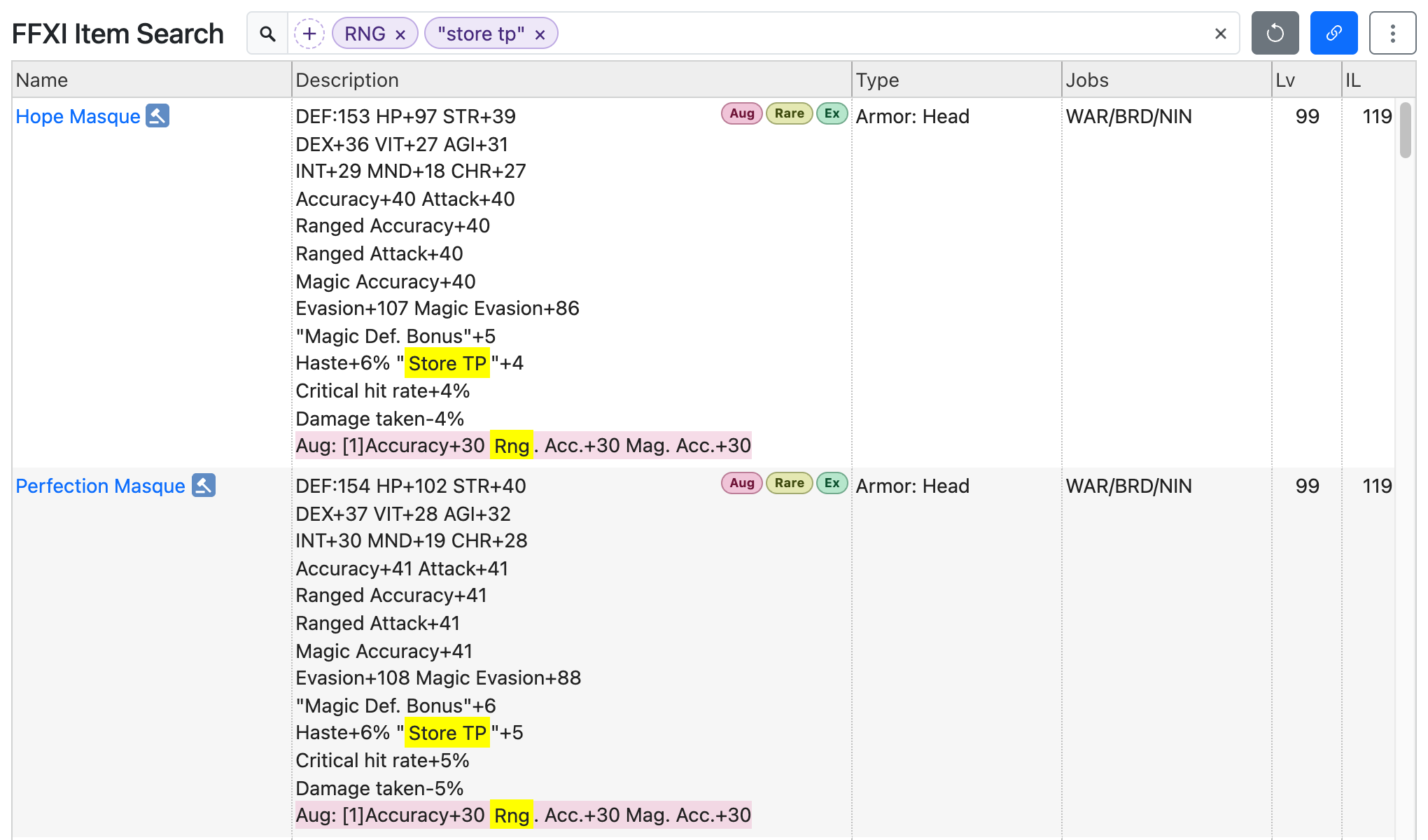
Entering RNG "store tp" finds Store TP equipment that RNG can equip.
Search a Specific Field
You can also limit a keyword to the item name, description, type, or jobs field. Use the form "field:keyword". The available field names are:
| Field | Field name |
|---|---|
| Name | name or n |
| Description | description or d |
| Type | type or t |
| Jobs | jobs or j |
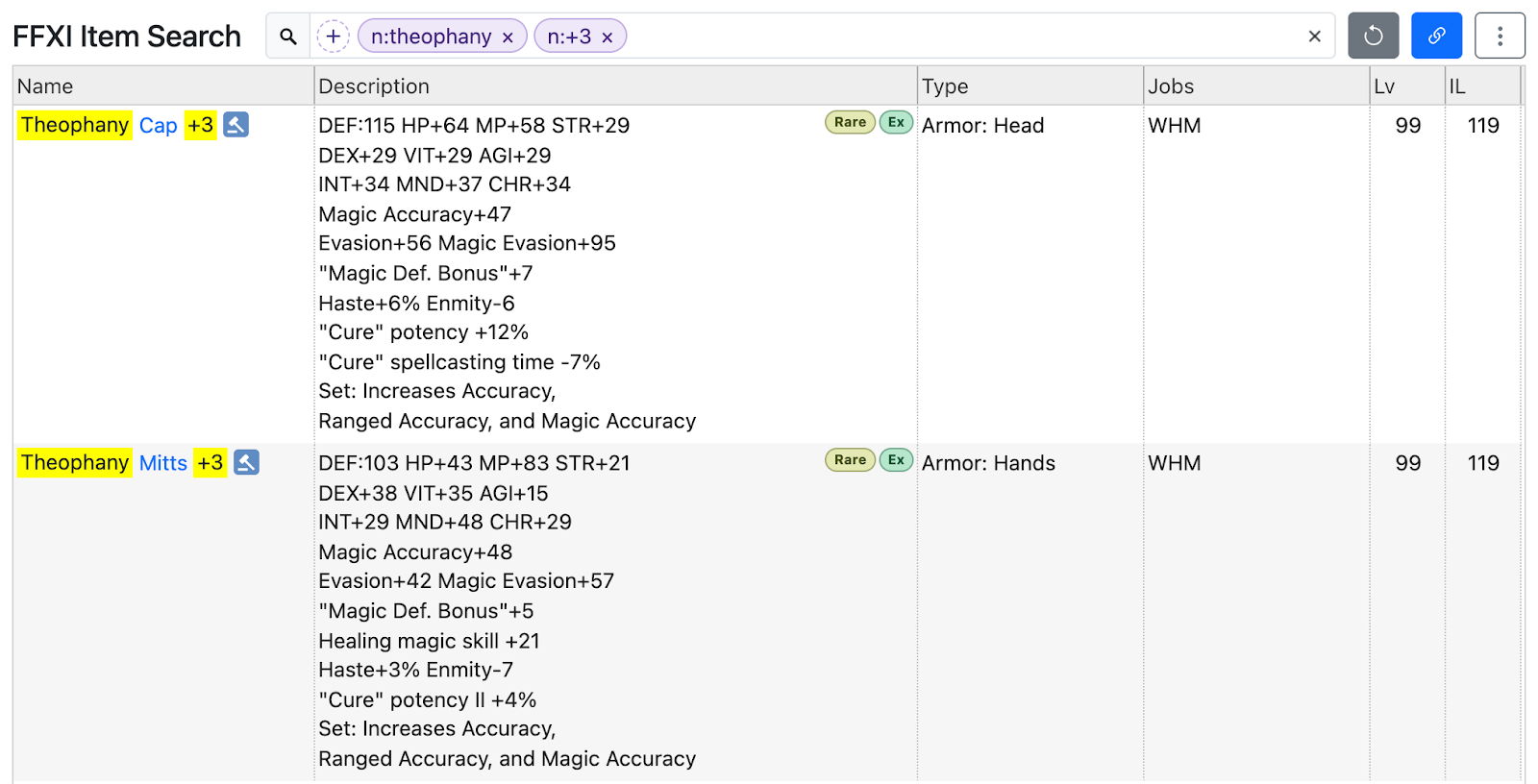
For example, to find the WHM AF +3 (Theophany +3), enter n:theophany n:+3.
OR Search
Joining keywords with two vertical bars makes an OR search.
For example, pet||automaton finds items that match either "pet" or "automaton".
Excluding Keywords
Putting "-" in front of a keyword finds items that do not contain that keyword.
For example, pet -automaton finds items that match "pet" but do not contain "automaton".
You can also put "-" in front of a field search, an OR search, or a property expression.
| Input | Finds |
|---|---|
"Store TP">0 -"Domain Invasion" | Store TP equipment, excluding "Domain Invasion" |
-n:+3 | Items whose name does not contain "+3" |
-automaton||wyvern | Items that contain neither "automaton" nor "wyvern" |
-STR>20 | Exclude items with STR greater than 20 (items without STR remain) |
Excluded keywords are not highlighted, and excluded property expressions are not extracted into columns.
When "-" is followed by a number, as in -10, it searches for the text "-10" instead of excluding it.
Search by Property
Keywords can also be expressions on stats and other properties. Wrap a property name that contains spaces in double quotes.
| Input | Finds |
|---|---|
"Store TP">=5 | Store TP of 5 or more |
"Damage taken"<=-4 | Damage taken of -4% or less |
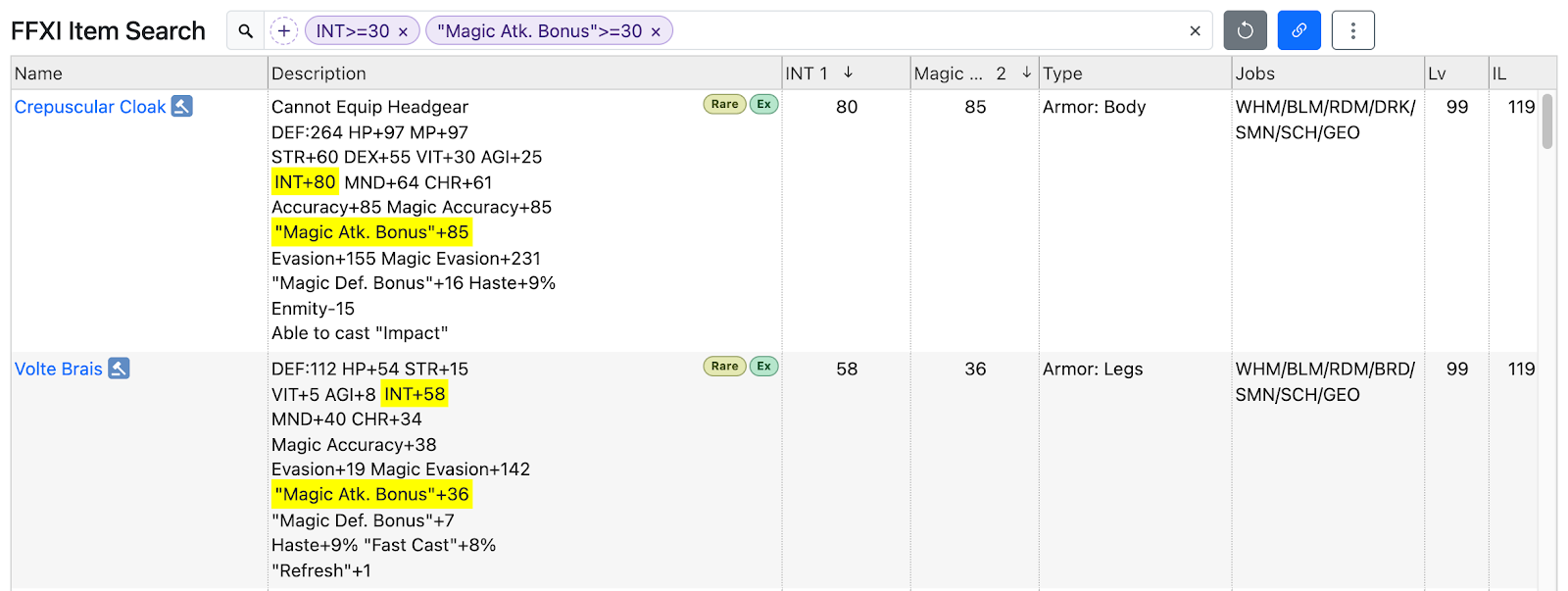
INT>=30 "Magic Atk. Bonus">=30 | INT and Magic Atk. Bonus of 30 or more |
Six operators are available:
< | less than |
<= | less than or equal to |
= | equal to |
!= | not equal to |
>= | greater than or equal to |
> | greater than |
Adding "%" after the number searches only percentage values.
Example: HP>=10% (matches HP+10% and the like)
For HP, MP, Attack, Ranged Attack, and DEF, a number without "%" searches only flat values (HP>=10 does not match HP+10%). Other properties match with or without "%" ("Damage taken"<=-4 also matches Damage taken-4%).
Property Name Suggestions
As you type in the search box, property names that contain what you typed are suggested.
Click a suggestion, or select one with the ↑ ↓ keys and press Tab (or Enter) to insert it. The number to the right of each suggestion is how many times it appears in the descriptions and augments of all items.
You can also find suggestions by common abbreviations such as DA (Double Attack), MACC (Magic Accuracy), and STP (Store TP). Abbreviations also work in expressions as they are (e.g. DA>=5).
Pet and Other Labeled Properties
Adding a label such as "Pet:", "Avatar:", or "Automaton:" searches only the properties written under that label.
| Input | Finds |
|---|---|
Pet:Haste>0 | Pet Haste of 1 or more |
Avatar:"Magic Atk. Bonus">=30 | Avatar Magic Atk. Bonus of 30 or more |
It also matches when other properties come in between, as in "Pet: Accuracy+45 Haste+7%", or when the properties continue on the next line. Everything up to the next label is covered.
Haste>0 without a label matches only properties that are not under any label. It does not match the pet's Haste, or properties under labels such as "Domain Invasion:".
Extracting and Sorting Properties
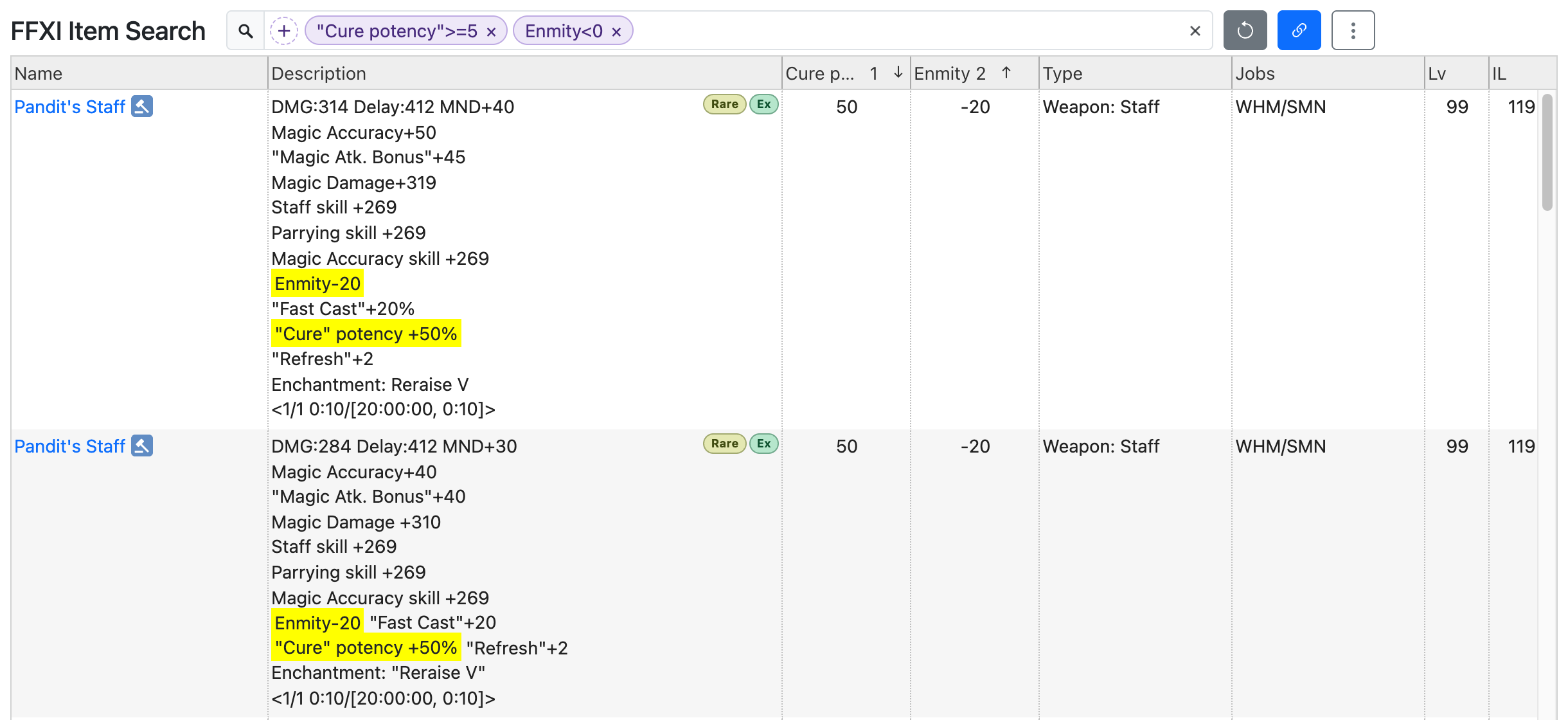
When your search contains property expressions, the values of those properties are extracted and shown in columns. The main rules are:
- Up to three properties are extracted
- Results are sorted by the extracted properties (ascending when the expression uses
<=or<, descending otherwise)
Below are the results for "Cure potency">=5 Enmity<0. They are sorted by Cure potency from highest to lowest, then by Enmity from lowest to highest.
Adding and Editing Conditions
You can build search conditions with buttons, without typing any symbols.
Click "+" on the left of the search box to open the condition editor. Type a property name or choose one from the suggestions. Before you type, the suggestions show the properties most common among the listed items, with the number of items that have each one.
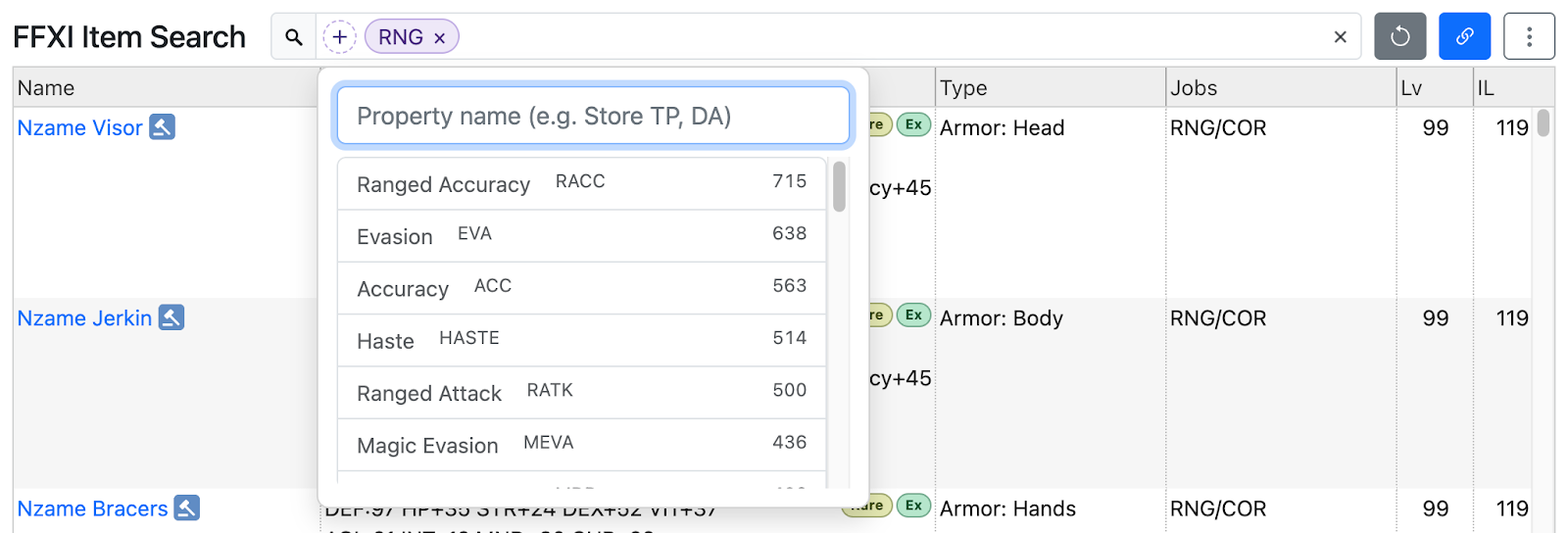
After choosing a property name, set the following and click "Done":
| Comparison | Choose from "Contains", ">", "≥", "=", "≤", and "<" ("Contains" searches it as text instead of an expression) |
|---|---|
| Value | "±" toggles the sign, and "−" and "+" decrease and increase the value. Common values are also available as buttons |
| % | Searches only percentage values |
| Exclude | Same as putting "-" in front |
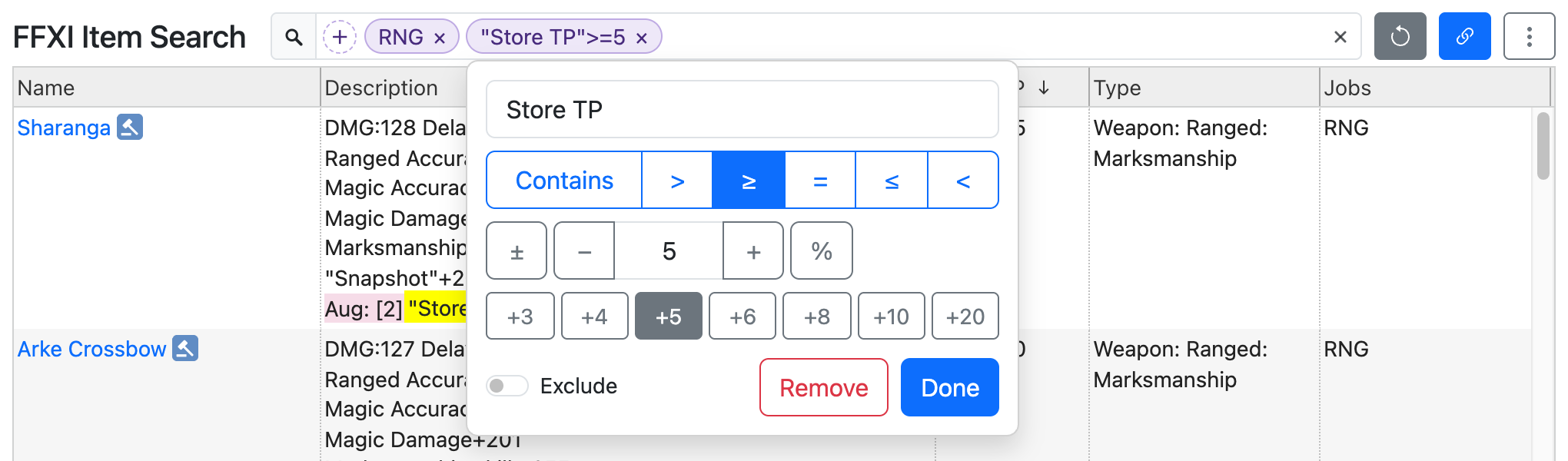
When the search box loses focus, your keywords are shown as badges. Click a badge to edit that keyword in the editor.
Click "×" on a badge, or "Remove" in the editor, to remove that keyword. Click "Undo", shown right after you remove a keyword, to bring it back.
Sorting
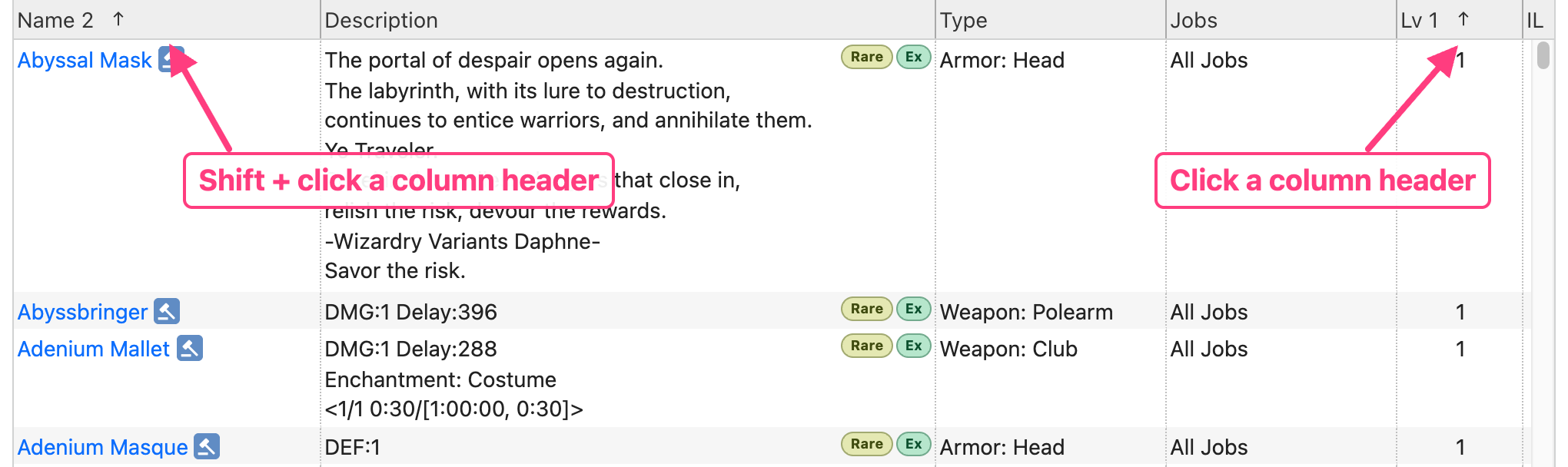
Click a column header such as "Name" or "Lv" to sort. Each click cycles through ascending, descending, and unsorted.
To sort by multiple columns, hold Shift while clicking the column headers.
Copying the URL and Clearing
The URL changes to match the search conditions you select or enter.
Click the link icon (Copy URL) to the right of the search box to copy the URL of the search results to the clipboard. Bookmark it to bring up the same results at any time.
Click the arrow icon (Clear) to its left to remove all search conditions.
On Smartphones
On a narrow screen, the layout changes as follows:
- Job, weapon, armor, and other filters open with the "Filters" button to the right of the title
- Selected filters are shown as badges. Tap a badge to remove that filter
- Name, description, level, and other details are combined into a single "Item" column
- Extracted property columns are not shown, but they are still used for sorting
- The list can be scrolled horizontally
Augments
Augments are searchable too. Augment data is registered for all equipment that can be augmented in game, except the following:
- Skirmish weapons
- Alluvion Skirmish weapons
- Arcane Glyptic weapons (Reisenjima weapons)
Aug, Rare, and Ex icons are shown to the right of the item name, just like in game. The "Aug" icon appears on equipment with augment data. Hover over or click it to see the augments.
Keywords and property expressions also search augments. Matching augments are shown on an "Aug:" line below the description.
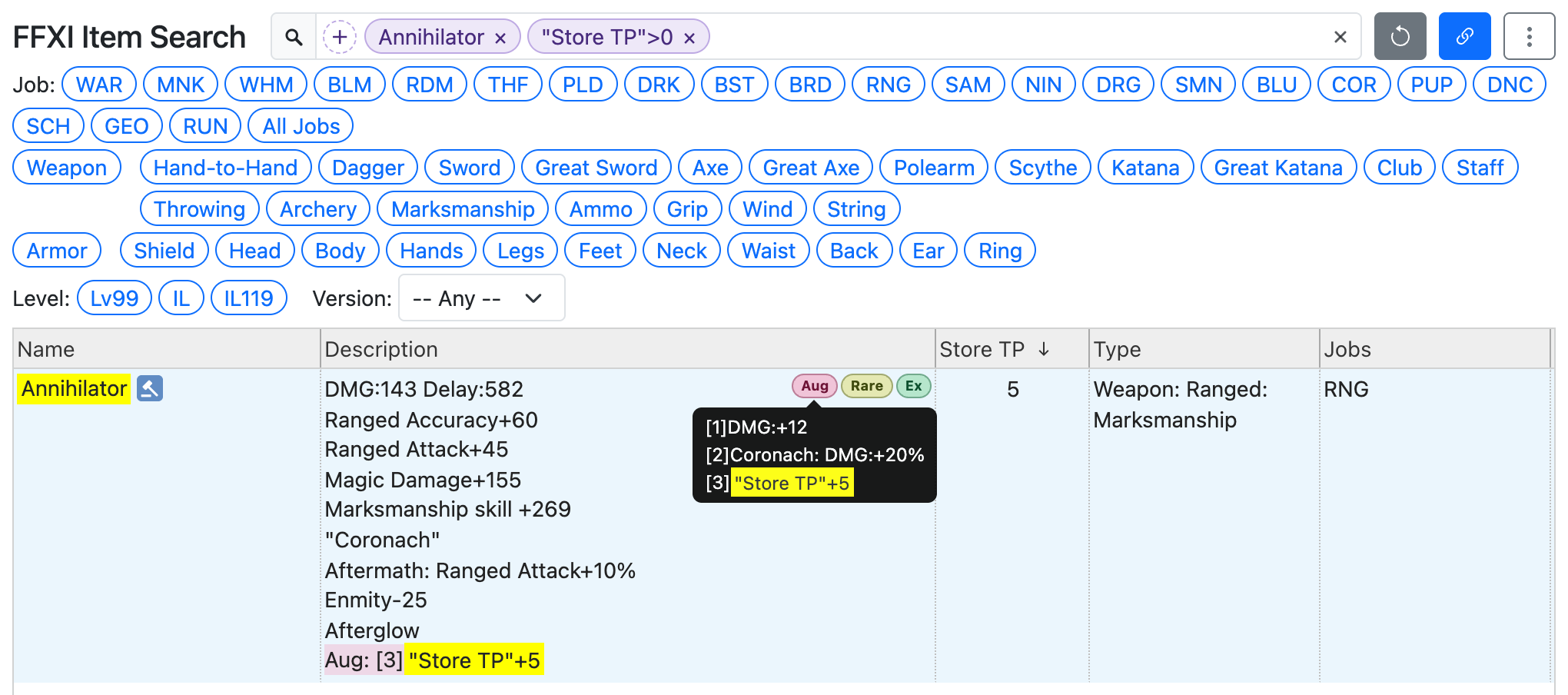
The augment data was collected from wikis and other sources. If you find any mistakes, please leave a comment on the blog.